This is the quick tutorial on how to make the chatbot in Android.
What does it take to build chatbot?
My answer: Firebase + API.AI + Coffee
This is what we are going to build.
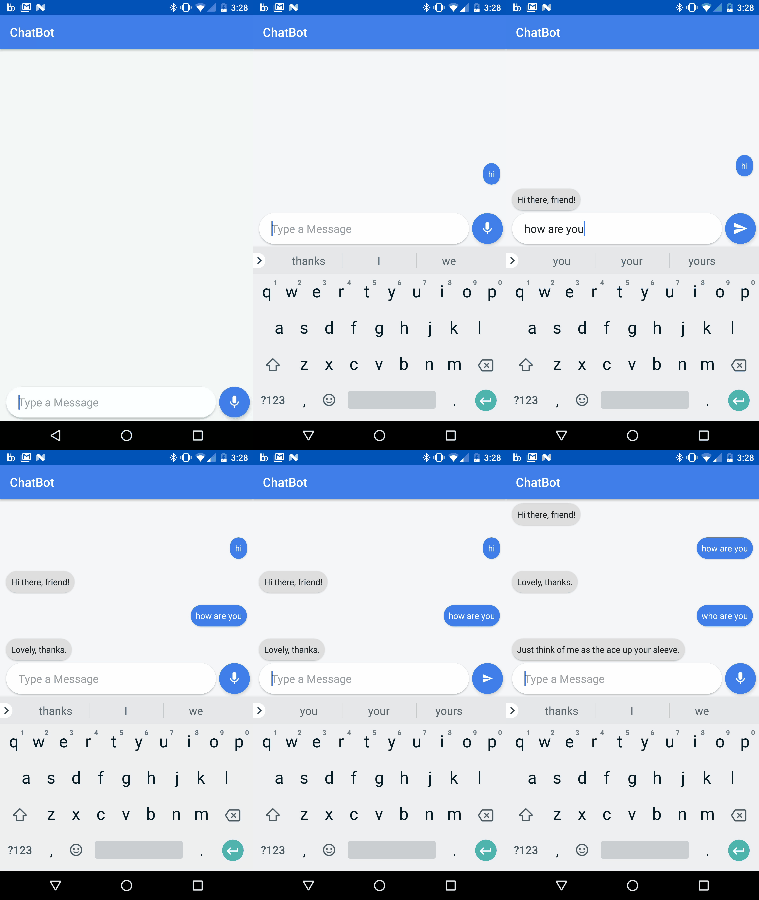 chatbot demo
Let’s start with creating the layout for our chatbot.
activity_main.xml
msglist.xml
Now all we have to do is initialize the firebase and recycler adapter with FirebaseRecyclerAdapter.
RecyclerView recyclerView;
EditText editText;
RelativeLayout addBtn;
DatabaseReference ref;
FirebaseRecyclerAdapter
 adapter;
Boolean flagFab = true;

@Override
protected void onCreate(Bundle savedInstanceState) {
    super.onCreate(savedInstanceState);
    setContentView(R.layout.activity_main);

recyclerView = (RecyclerView)findViewById(R.id.recyclerView);
    editText = (EditText)findViewById(R.id.editText);
    addBtn = (RelativeLayout)findViewById(R.id.addBtn);

recyclerView.setHasFixedSize(true);
    final LinearLayoutManager linearLayoutManager = new    LinearLayoutManager(this);
    linearLayoutManager.setStackFromEnd(true);
    recyclerView.setLayoutManager(linearLayoutManager);

ref = FirebaseDatabase.getInstance().getReference();
    ref.keepSynced(true);

addBtn.setOnClickListener(new View.OnClickListener() {
        @Override
        public void onClick(View view) {

String message = editText.getText().toString().trim();

if (!message.equals("")) {

ChatMessage chatMessage = new ChatMessage(message, "user");
         ref.child("chat").push().setValue(chatMessage);

}

editText.setText("");

}
    });

adapter = new FirebaseRecyclerAdapter
(ChatMessage.class,R.layout.msglist,chat_rec.class,ref.child("chat")) {
        @Override
        protected void populateViewHolder(chat_rec viewHolder, ChatMessage model, int position) {

if (model.getMsgUser().equals("user")) {

viewHolder.rightText.setText(model.getMsgText());

viewHolder.rightText.setVisibility(View.VISIBLE);
                viewHolder.leftText.setVisibility(View.GONE);
            }
            else {
                viewHolder.leftText.setText(model.getMsgText());

viewHolder.rightText.setVisibility(View.GONE);
                viewHolder.leftText.setVisibility(View.VISIBLE);
            }
        }
    };

recyclerView.setAdapter(adapter);

}
Now in this part we will implement api.ai. First create an agent in api.ai and enable small talks.
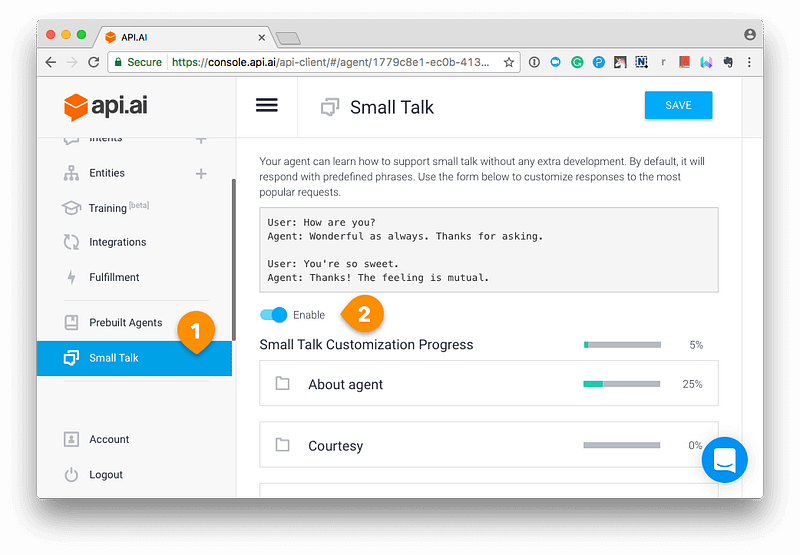
Note: Small talks allows you to easily import a lot of predefined answers for simple questions and phrases like “Hi!”, “How are you?”, “Are you robot?”, “What’s your hobby?”, “How old are you?” and many-many more.
Now we will configure api.ai in our java code.
private AIService aiService;@Override
protected void onCreate(Bundle savedInstanceState) {
super.onCreate(savedInstanceState);
setContentView(R.layout.activity_main);final AIConfiguration config = new AIConfiguration("Client access token", AIConfiguration.SupportedLanguages.English,
AIConfiguration.RecognitionEngine.System);
aiService = AIService.getService(this, config);
aiService.setListener(this);
final AIDataService aiDataService = new AIDataService(config);
final AIRequest aiRequest = new AIRequest();addBtn.setOnClickListener(new View.OnClickListener() {
@Override
public void onClick(View view) {
String message = editText.getText().toString().trim();
if (!message.equals("")) {
ChatMessage chatMessage = new ChatMessage(message, "user");
ref.child("chat").push().setValue(chatMessage);
aiRequest.setQuery(message);
new AsyncTask
(){
@Override
protected AIResponse doInBackground(AIRequest... aiRequests) {
final AIRequest request = aiRequests[0];
try {
final AIResponse response = aiDataService.request(aiRequest);
return response;
} catch (AIServiceException e) {
}
return null;
}
@Override
protected void onPostExecute(AIResponse response) {
if (response != null) {
Result result = response.getResult();
String reply = result.getFulfillment().getSpeech();
ChatMessage chatMessage = new ChatMessage(reply, "bot");
ref.child("chat").push().setValue(chatMessage);
}
}
}.execute(aiRequest);
}
else {
aiService.startListening();
}
editText.setText("");
}
});}Implementing voice command in chatbot
public class MainActivity extends AppCompatActivity implements AIListener{@Override
public void onResult(ai.api.model.AIResponse response) {
Result result = response.getResult();
String message = result.getResolvedQuery();
ChatMessage chatMessage0 = new ChatMessage(message, "user");
ref.child("chat").push().setValue(chatMessage0);
String reply = result.getFulfillment().getSpeech();
ChatMessage chatMessage = new ChatMessage(reply, "bot");
ref.child("chat").push().setValue(chatMessage);
}
@Override
public void onError(ai.api.model.AIError error) {
}
@Override
public void onAudioLevel(float level) {
}
@Override
public void onListeningStarted() {
}
@Override
public void onListeningCanceled() {
}
@Override
public void onListeningFinished() {
}}That’s it! Your chatbot is ready to talk to you.
Check out my github repository for full code of chatbot. https://github.com/divyanshub024/ChatBot
If you liked this article make sure to 👏 it below, and follow me on twitter!
Check out my previous article “Custom Dialog with Circular Reveal Animation”.